
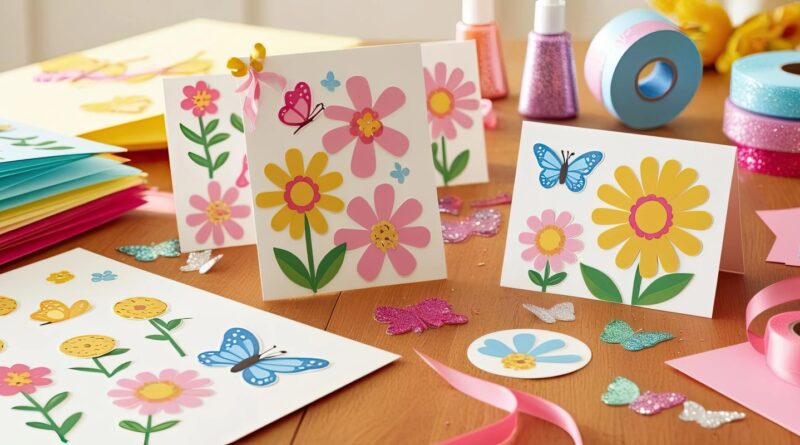
How to Print Digital Clipart at Home
Digital clipart has also been applied in the DIY business, such as planners, wall art and stickers, party decorations, and teaching aids. The merit is that you can print at any time when you wish to be at home and free to print as large as you want to be and as much as you want to print. The first-time user is normally baffled as he or she attempts to understand how to print PNG clipart and preserve the quality of the same, and not waste paper and ink. This tutorial is the explanation of why your clipart is not sharp and what type of paper to use.
This beginner-level tutorial will explain to you how to print digital clipart at home, what you will need, what traps you need to avoid, and what professional tips you can make use of in an attempt to make it look professional.
What Is Digital Clipart?
Digital clipart exists in the form of image files that he/she downloads with each purchase of the same.
These are in the following forms:
- PNG (most popular)
- JPG / JPEG
- SVG (for cutting machines)
Digital clipart is not a tangible product since you download and use it in your work, whether personal or business, depending on the license.
Printing Clipart Digital Photoshop at Home
Printing may be done by preparing things that are ready to print. It is a good thing because you should not use the expensive equipment.
A Printer
- It is also possible to print inkjet using clipart and artwork.
- Laser printers do not support the use of elaborate and colourful watercolour designs.
Good Quality Paper
Final decision: The nature of the paper:
- Matte cardstock (200300 GSM) – it can be used in wall art and in planners.
- Bright film paper – machine colours.
- Sticker paper – for stickers.
- Plain paper – practice prints.
Design Software or Viewer
You can open clipart with:
- Adobe Acrobat (for PDFs)
- Canva
- Photoshop
- Microsoft Word
- Preview (Mac)
How to Print Digital Clipart at Home Without Losing Quality
Step 1: Download Your Clipart Files
In order to buy, download the ZIP file. Unzip the folder. Click on the file that one wants to print.
Technical Hint: Do not print a screenshot; ensure that you print the file.
Step 2: Select the right File Format
For home printing:
- PNG (300 DPI) – best quality.
- PDF – perfect for exact sizing.
- JPG -unless it is a high-resolution one.
Step 3: Choose the Paper size
- Open print settings.
- Select the paper size (A4, Letter, etc.).
- Ensure that you activate the fit-to-page option to ensure accurate sizing.
Step 4: Adjust Printer Settings for Best Quality
The suggestion of its application might be presented in the following environments:
- Print Quality: High / Best.
- Paper Type: Select the paper (cardstock, photo paper).
- Color Mode: RGB or Best Color.
- Scale: 100%.
Do not use Draft mode, which is not of good grade.
Step 5: Print a Test Page
It will be recommended that a test page be first printed to confirm the color and size before attaching some useful paper.
Step 6: Final Print & Drying
- Let the ink dry for 10-15 minutes.
- Do not put the surface all at once.
- Delay in case of a sticker.
Common Printing Problems & Solutions
Blurry Clipart
Use 300 DPI files.
Violence did not cause it to become larger than it was before.
Colors Look Dull
Use glossy or photo paper.
Set print quality to “High.”
Ink Smudging
Allow drying time.
Know the situation of selecting the appropriate paper.
Home Hacks to Expert Results
- Print in natural lighting.
- Periodically wipe out print heads.
- Clipart in printed form in folders.
- Laminate for durability.
- Establish print preferences in stores as templates.
Is it possible to print digital clipart?
- Yes. Few sizes, no quality lost.
- Bigger sizes can dull it out.
The design programmes, which will be used in the resizing, will be the best design software, such as Canva or Photoshop.
Personal and Commercial Uses of Printing
Always check the license:
- Personal use may print on demand.
- Commercial use is authorized when dealing with real objects (however, it does not apply when the resale is carried out via the Internet).
- Do not sell the digital files.
Why Print Clipart at Home Instead of Professional Printing?
- Saves money
- Instant results
- Full creative control
- Unlimited reprints
Home Printing is Perfect for:
- Small businesses
- Etsy sellers
- Teachers
- DIY lovers
Frequently Asked Questions
Q1: What DPI can print digital clipart?
A1 should be a professional printer.
Q2: Explains how to print digital clipart at home using simple printer settings
It is simple to print the digital clipart at home with just the simplest of printer settings, such as high-quality mode, proper paper size, and scale to 100 percent to have the best results.
Q3: Do you not have a printer to print?
Yes, publishing it in a printing house in your town or publishing it on the net.
Q4: Of the two, which one is superior compared to clipart inkjet or laser?
Inkjet printers outshine others in color and touch in designing with watercolor.
Final Thoughts
After you become familiar with all the capabilities (printer options, high-quality files, and the right paper), you will find that it does not require being expensive, inventive, and competent to print digital clipart at home. It is cheaper and simpler to print, whether you are furnishing your home, you are a planner, or you are a business dealing in digital products, and, anyhow, your degree of creative freedom is unconditional.

Pingback: Stop Wasting Time Designing From Scratch Use This Ready-Made Clipart - Clickydownloads.com